
How to Upload Evidence for a Dispute
Before you start
Evidence can only be added to disputes that are still open and within the upload deadline shown on the dispute page. Once a dispute is resolved (won or lost), or the deadline has passed, the upload form is no longer available.
Steps
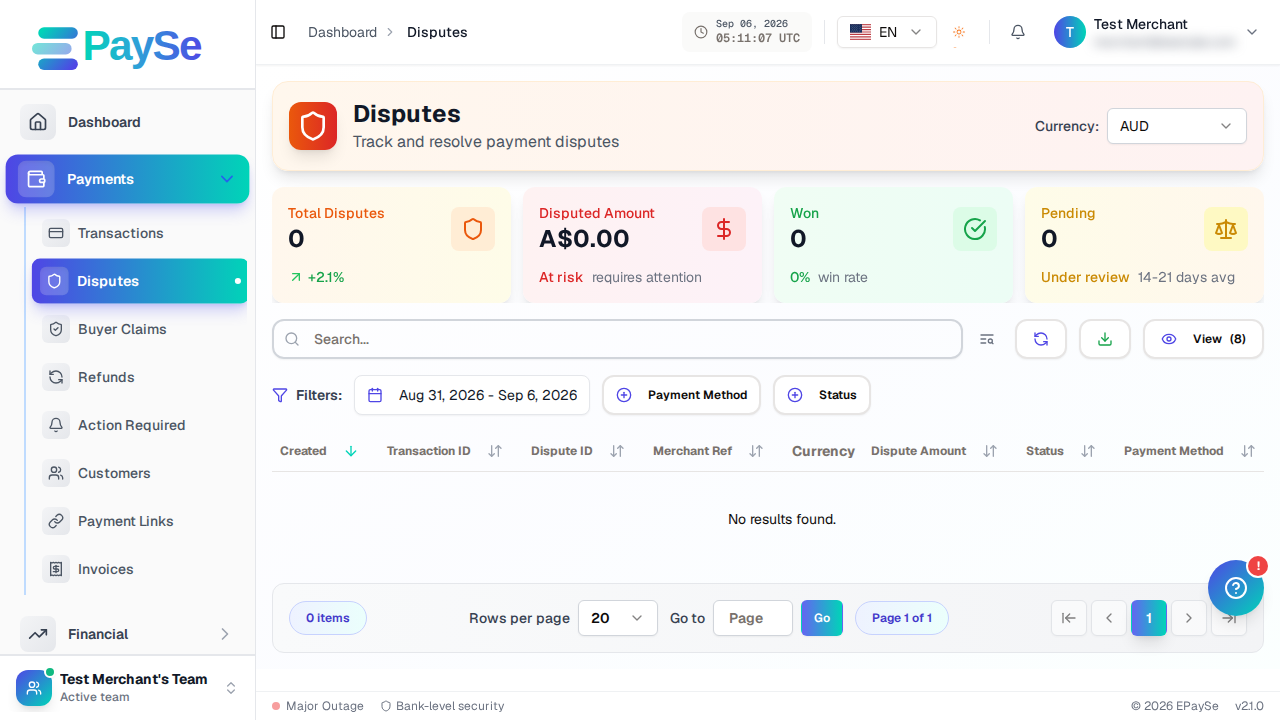
- Go to Payments → Disputes and open the dispute you want to respond to.
- Scroll to the Evidence Files section.
- Choose an evidence type: proof of delivery, cancellation policy, billing address match, customer communication, refund policy, or other.
- Select the file you want to upload.
- Add an optional note explaining the evidence, if it helps make your case clearer.
- Submit the evidence.
After you submit
The file appears right away in the dispute's evidence list, along with who uploaded it and when. You can upload more than one piece of evidence if you have supporting documents of different types.
If you don't see the upload form
- The dispute has already been resolved (won or lost).
- The evidence upload deadline shown on the dispute page has passed.
Related Articles
Accepting Payments for AI Companion and AI Image Apps: What Acquirers Ask For
Some acquirers consider AI companion and AI image apps for card payments, case by case, when lawful, consent-based and age-verified. Here is what they ask for.
Payments for FX and CFD Brokers: A Provider Checklist
What an FX or CFD broker should confirm with a payment provider: licensing fit, country coverage, deposit routing, cash-outs, settlement and disputes.
Payment Gateway for iGaming: What to Evaluate Before You Integrate
A payment gateway for iGaming is a routing and risk layer for deposits and player cash-outs. Here is what to evaluate before you integrate.
Payment Integration Testing: Five Checks Before Going Live
Before going live with online payments, test a full successful payment, declines, refunds, webhooks and monitoring. This checklist explains each check in plain words.